Copied text
Fix copied paragraphs and formatting
Best for PDFs, Word docs, Google Docs, and pasted article text.
Fix broken PDF text, OCR output, email lists, and common PDF jobs like merging, splitting, and compressing. Everything runs in your browser — no uploads, no account, no waiting.
If you do not know the tool name, start with the kind of problem you have.
Copied text
Best for PDFs, Word docs, Google Docs, and pasted article text.
Scans and screenshots
Best for text copied from scans, screenshots, and scan apps.
Lists and email
Best for outreach lists, spreadsheet exports, pasted CC lines, and simple CSV cleanup.
PDFs and scans
Best for merging, reordering, table extraction, deskewing, cropping, splitting, and fixing scans.
These are common PDF tasks people search for directly. Open the one that matches the file job you need.
Combine files
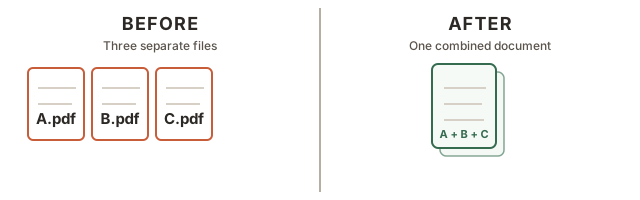
Use this when: you have two or more PDF files and need one combined copy.
Example: combine a signed form, ID page, and receipt into one upload.
Extract pages
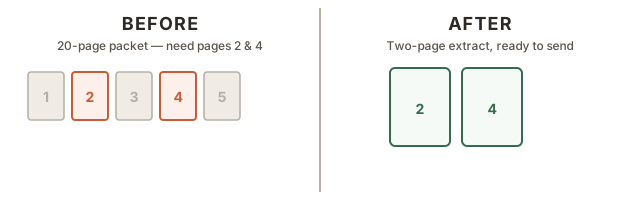
Use this when: you only need some pages from a larger PDF.
Example: save pages 3 to 5 from a 20-page packet.
Turn pages
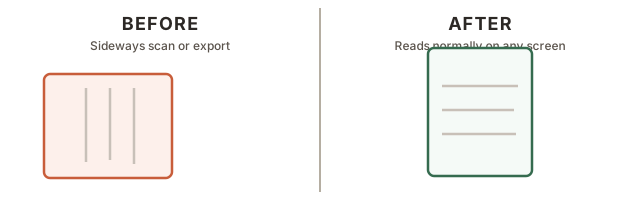
Use this when: scans or exported pages are sideways or upside down.
Example: rotate a phone scan 90 degrees before sending it.
Lighter files
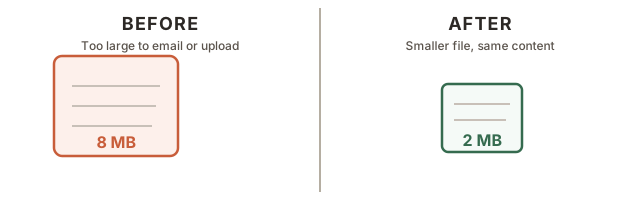
Use this when: a PDF needs a simpler copy that is easier to share.
Example: make a file easier to email or upload to a form.
From photos
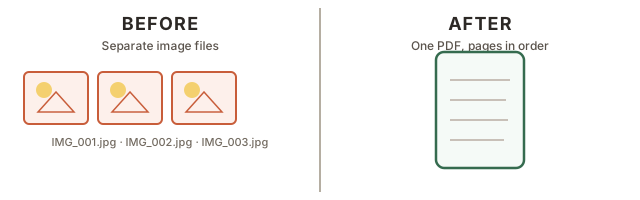
Use this when: you have JPG or PNG pages and need one PDF.
Example: turn four phone photos of documents into one PDF.
These are the tools most people reach for first when they just need the problem solved quickly.
Copied PDF text
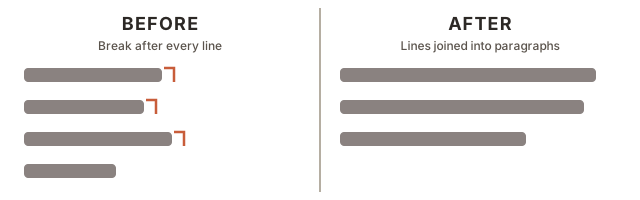
Use this when: a paragraph copied from a PDF pastes as one short line per row.
Example: a report paragraph becomes a tall skinny block instead of normal text.
Scan cleanup
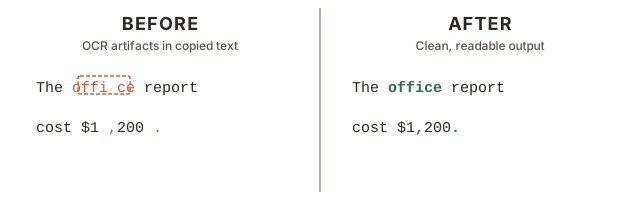
Use this when: copied scan text looks garbled or oddly spaced.
Example: “fi” is wrong, punctuation spacing breaks, or words split strangely.
Email list
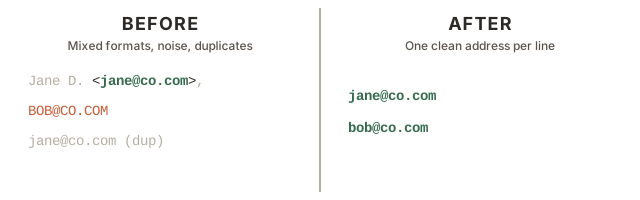
Use this when: names and emails need to become one clean address per line.
Example: a CC line or spreadsheet export needs cleanup before import.
Scanner problem
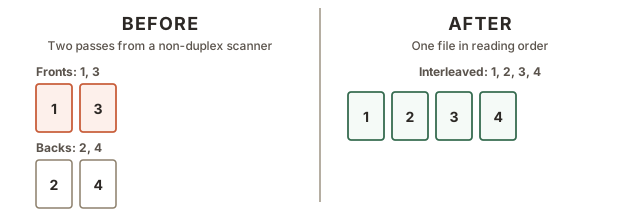
Use this when: you scanned fronts and backs separately and need one file.
Example: your scanner cannot duplex, so you fed the same stack through twice.
More text cleanup
Use this when: you need CSV cleanup, phone extraction, citation cleanup, repeated header cleanup, or to compare two versions of text.
Example: pull phone numbers from notes, strip [12] references, fix spaced-out OCR text, or remove repeated page titles from pasted text.
More PDF jobs
Use this when: you need to merge, reorder, rotate, split, compress, deskew, crop, or convert files into PDFs.
Example: combine multiple PDFs, pull a table into CSV, crop scan borders, or turn images into a PDF.
If your text or files are messy in more than one way, these are the most common tool combinations.
PDF paragraph fix
Messy contact list
Two-pass scanner fix
Your text and files never leave this browser tab. TextFix has no server, no account system, and no analytics on your content.
Try these four right here. Every other tool is linked below.
Paste copied text from PDFs, emails, or documents and remove unwanted line breaks while preserving paragraph breaks.
Example: a PDF paragraph pasted as one short line after another.
How it works
Clean up OCR output from scans and screenshots by fixing ligatures, line-wrap hyphenation, punctuation spacing, and common formatting noise.
Example: text copied from a screenshot looks garbled or has weird spacing before punctuation.
How it works
Extract, normalize, validate, and deduplicate email addresses copied from spreadsheets, forms, and CC fields.
Example: names plus emails from a spreadsheet need to become one clean address per line.
How it works
Upload one PDF of front-side scans and one PDF of back-side scans, then interleave them into one duplex PDF.
Example: your scanner cannot do duplex, so you scanned the same stack twice and need one final PDF.
Before & after
Choose the PDF containing page 1 fronts, page 2 fronts, and so on.
Choose the PDF containing the back sides from the second scan pass.
Need a different tool?
TextFix is built to be fast, low-friction, and easy to trust when you need to clean up messy copied text.
Each tool is built around a specific cleanup task, so you can get in, fix the text, and move on without extra clutter.
When one fix leads to another, it is easy to move from one tool to the next, like fixing line breaks before cleaning scan text.
The tools run in the browser, there is no account wall, and the pages stay focused on the cleanup task instead of getting in your way.
A few quick answers before you paste anything in.
No. Every tool runs entirely in your browser using JavaScript. Nothing you paste or load is sent anywhere — there is no server receiving your input, no database storing it, and no network request made with your content. You can verify this by opening your browser's network tab while using any tool: you will see no outbound requests carrying your text or file data.
No. Everything runs in your browser — your text and files never leave your device. The only network request is the initial page load. Whether that is sufficient for your specific compliance requirements is something you should verify for your situation.
Text tools handle large pastes well — there is no practical size limit for text input. PDF tools load files into browser memory, so performance depends on your device. Most PDFs under 100 MB work without issues. Very large PDFs (several hundred pages or high-resolution scans) may be slow to process on older hardware. If file size is the issue, Compress PDF can help before you pass the file on. There is no file size cap enforced by the site.
TextFix is built for text that comes out messy after being copied from somewhere: PDFs, scanned documents, OCR output, exported spreadsheets, email threads, contact lists, and CRM exports. If you are dealing with wrapped lines, try Remove Line Breaks. For garbled scan text, try Fix OCR Text. For messy contact lists, try Clean Email List.
Most PDFs are laid out for print. Each line is stored as a separate text element with a fixed width. When you copy and paste, those line endings come along, so a single paragraph arrives as dozens of short lines. The Remove Line Breaks tool detects where real paragraph breaks are (two line breaks in a row, or a line ending mid-sentence) and joins the short lines back into flowing paragraphs.