Merge PDFs
Combine multiple PDFs into one file.
Use these tools to combine PDFs, change page order, rotate pages, remove pages, split files, compress PDFs, turn images into PDFs, pull simple tables into CSV, or clean up scanned pages.
Pick the PDF job you need and jump straight to it.
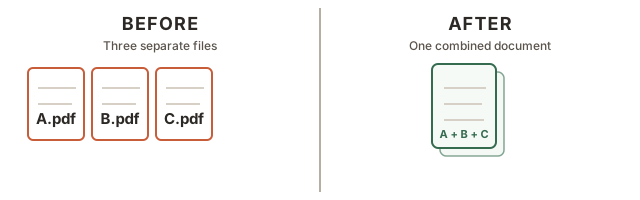
Combine multiple PDFs into one file.
Change page order with a simple list like 3,1,2.
Turn every page or just the pages you choose.
Remove the pages you do not want and save the rest.
Save selected pages as a new PDF or one file per page.
Pull simple table text out of a PDF and turn it into CSV.
Save a simpler copy when you want a lighter file.
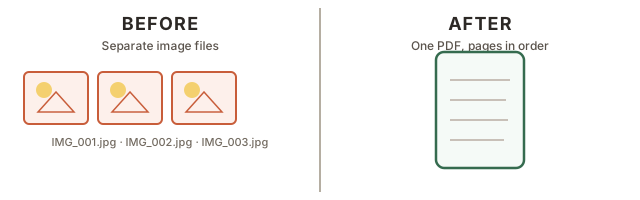
Turn image files into PDF pages.
Straighten crooked scanned pages.
Trim away empty borders around receipts, pages, and forms.
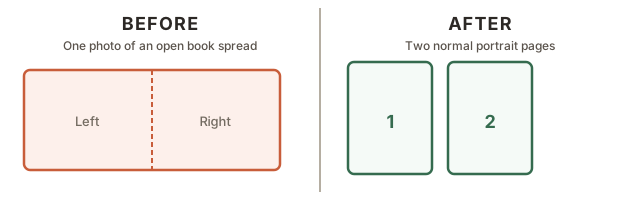
Cut a scanned spread into separate pages.
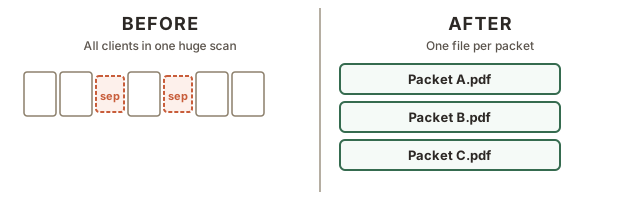
Break a scan stack into packets when a blank page or code appears.
Use this when you have multiple PDFs and need one combined file.
Before & after
Type page numbers like 3,1,2 or ranges like 1-3 to set the order you want.
Before & after
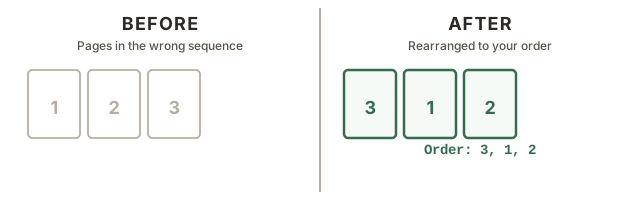
Example: 3,1,2
Turn every page, or only the pages you choose, by 90, 180, or 270 degrees.
Before & after
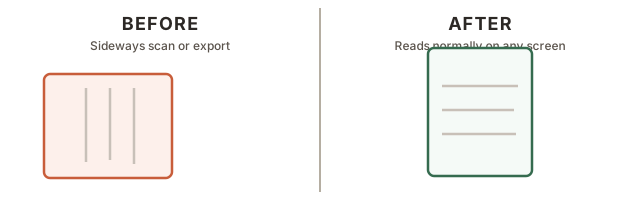
Leave blank to rotate every page.
Enter the pages to remove, then download the updated PDF.
Before & after
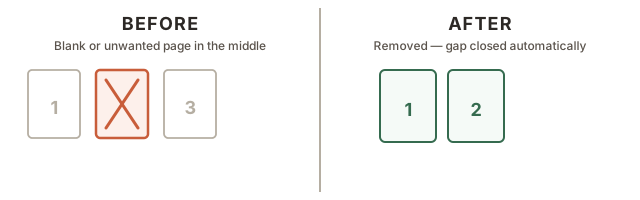
Example: 2 or 2,4-5
Save the pages you want as one new PDF, or download one file per page.
Before & after
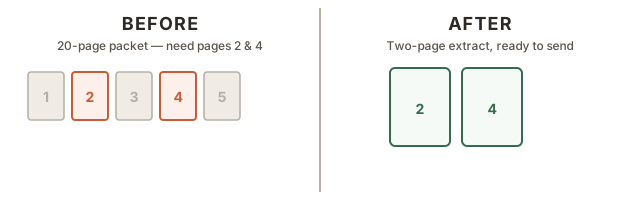
Leave blank to keep all pages.
Use this when a PDF has a simple text table you want to pull into a spreadsheet. Best for clear rows and columns, not scanned image-only tables. If you only need this job, open PDF Table To CSV.
Before & after
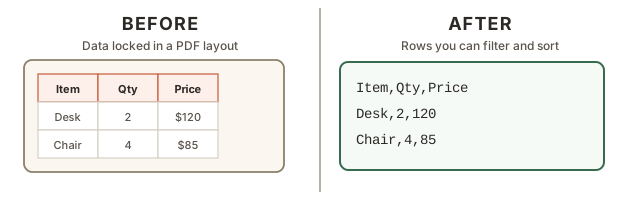
Leave blank to read every page. Example: 1 or 2-4
Use this when you want to save a simpler copy of a PDF that may be easier to share. If you only need this job, open Compress PDF.
Turn JPG or PNG files into a multi-page PDF. If you only need this job, open Image To PDF.
Before & after
Use this when a scan is slightly crooked and you want a straighter PDF copy. Works with image files and PDFs. If you only need this job, open Deskew Scan.
Before & after
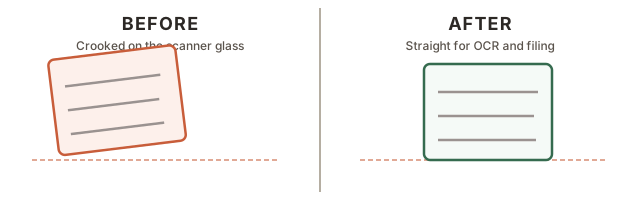
Leave blank to auto-detect. Use values like -2 or 1.5 if you want to control it yourself.
Use this when a scan has too much empty border around the page, receipt, or form and you want a tighter PDF copy. If you only need this job, open Crop Scan Margins.
Before & after
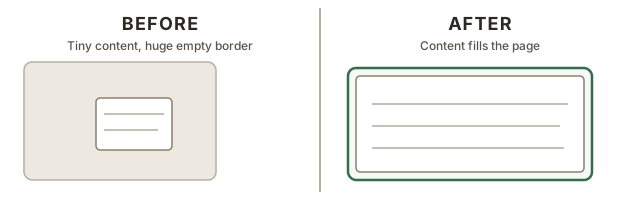
Keeps a little breathing room after the crop.
Use this when one scanned image contains two pages side by side and you want them split apart.
Before & after
Use this when a scan stack should turn into separate packets whenever a blank page, QR code, or barcode separator appears. If you only need this job, open Split Scans By Separator.
Before & after
Optional for QR and barcode mode. Leave blank to split on any detected code.